


Looking for the best Midnight addons to grab in 2026? These 5 are absolute essentials. Some are so extensive that they effectively replace dozens of smaller addons with their built‑in features, and all of them work perfectly in Midnight.
Even with all the UI updates and new settings, WoW still isn’t at the point where you can comfortably play without addons. As I came back for Midnight, I quickly ran into a few really odd UI issues that I felt forced to solve with addons. To be fair, I’m generally satisfied with what the default UI offers – there’s enough on‑screen information for someone like me to understand what’s going on. But the lack of some very basic features that almost every other MMORPG includes out of the box pushed me to look for external solutions.
In this guide, I’ll go over my personal top 5 addons that I think every player should at least try. This isn’t a list just for newcomers; it’s for anyone who believes they can get by without addons altogether. I’ll start with the two addons I’m actively using, then highlight three more that you should strongly consider. Yes, some of their functionality overlaps, but that also means you’ll have more flexibility to make your UI cleaner and your gameplay more comfortable.
Enhance QoL - Midnight addons
One thing I never understood is why every major in‑game window – the map, quest log, bags, character sheet, professions, and so on – is glued to a fixed spot on the screen with no option to move it. If Blizzard is modernizing the UI and adding quality‑of‑life improvements by letting us rearrange elements, why are these core windows still locked?
Because of that, I can’t even properly preview graphic setting changes. The settings window sits right in the middle of the screen, and although changes apply instantly, I have to close the menu every time to see what actually changed behind it.
This was the first problem I absolutely had to solve, and the answer was a massive addon called Enhance QoL.
The addon bundles a ton of useful tweaks in one place. I definitely haven’t touched everything it can do, but it’s reassuring to know that if something annoys me, there’s a good chance this addon lets me adjust it. Here’s what I changed first.
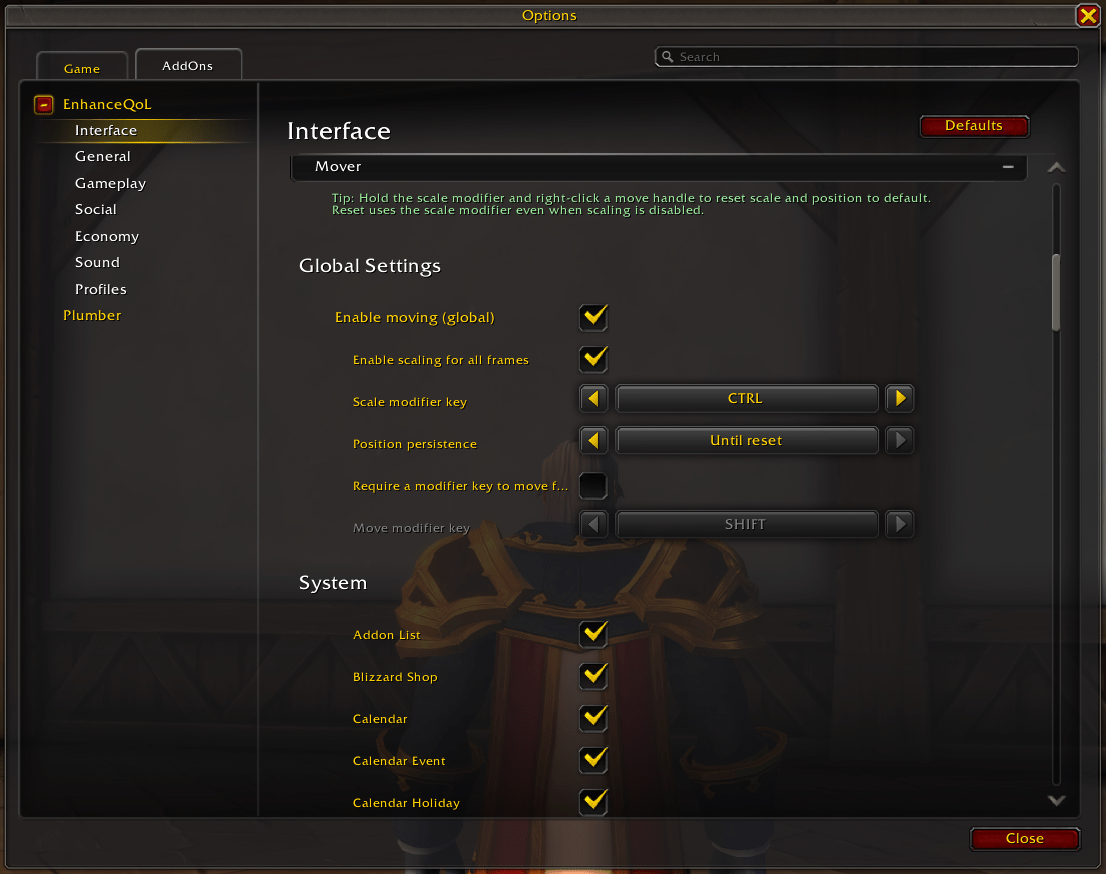
Enable moving and scaling for In‑Game Windows
Open the addon options and go to the Interface section. Scroll down to the bottom and expand the “Mover” category. There you’ll see a long list of settings; here’s what I picked and why:
Enable moving (global): Enabled (checked)
Enable scaling for all frames: Enabled (checked)
Scale modifier key: CTRL
Position persistence: Until reset
Require a modifier key to move frames: Disabled (unchecked)
Move modifier key: SHIFT
By default, you can drag windows around while holding SHIFT, but I turned that requirement off so I can simply click‑and‑drag any window with the mouse.
Scaling is turned off by default, but enabling it lets you resize individual windows, which is great if you play on a large monitor and want certain UI elements to be bigger. The game technically supports UI scaling for text, but it’s clunky and not very reliable. With this option, you can resize entire frames the way you want.
All your changes to window position and size are saved until you decide to move or resize them again. If you prefer a less persistent setup, you can switch it so positions reset when you close the frame or log out.
Hiding action bars and menus when you don’t need them
The next thing I wanted to tackle was decluttering the HUD. There are plenty of elements I don’t need to stare at all the time while playing, and Enhance QoL makes it easy to hide them intelligently.
For instance, you can hide specific action bars and only show them under certain conditions. I created two custom bars: one for emotes (for social play and light RP) and one for utility things like my mount, hearthstone, transmogs (via another addon feature), and similar tools. I don’t want these visible during combat, so I configured them to disappear as soon as combat starts.
On the flip side, my second main action bar is only relevant while I’m fighting. When I’m out of combat, it just eats up valuable screen space. So I set it to appear only when I enter combat. To adjust this behavior:
Expand the “Action Bars & Buttons” menu in the Interface section.
Change the display rules and conditions for any bar you want.
There’s a long list of conditions you can use, such as:
Mouseover
Always in combat
While skydiving
Hide while skydiving
Always out of combat
Player is casting
Mounted
Not mounted
In party/raid
I also hid the Micro Menu and bag icon on the right side of the screen, since I don’t need to see them constantly. I set them to appear on mouseover instead, so I don’t have to remember every keybind by heart but still keep the screen cleaner.
To do similar tweaks:
Open the “Visibility & Fading (Frames)” menu in the Interface section.
Pick the frame you want to control and define how and when it shows up.
Honestly, you could write an entire standalone guide just on Enhance QoL, because it offers hundreds (if not thousands) of little adjustments. Below are a few standout features that are worth calling out:
Feature | What it does | Why it’s useful |
|---|---|---|
Teleport Compendium panel | Lets you choose teleports directly from the world map | Saves time by replacing toys, hearthstones, and scattered teleport items |
Health potion macro | One emergency heal button that auto‑updates to your current potion/stone | No upkeep, frees keybinds, avoids broken icons when bags are empty |
Out of combat Recuperate swap | Uses Recuperate outside combat instead of a potion | Keeps one keybind relevant and reduces button bloat |
Custom cooldown panels | Tracks abilities and items the default cooldown tracker ignores | Perfect for potions, trinkets, racials, and niche cooldowns |
Minimal quest tracker minimization | Makes the “minimized” quest tracker actually minimal | Clears the screen while still keeping quest info accessible |
Action bar fading and cleanup | Fades action bars to support a minimalist UI | Can replace several HUD‑tweaking addons with less configuration |
Built‑in WeakAura‑like utilities | Offers mouse rings, hold‑to‑release, keystone helper‑style tools, etc. | Bundles common QoL features without needing extra addons |
One addon replacing several others | Handles automation, item selling, and UI tweaks depending on settings | Fewer addons to maintain, fewer conflicts, faster to set up |
If you only install one QoL addon for Midnight, this should probably be it. It dramatically improves day‑to‑day gameplay and is worth having even if you’re new.
Plumber - Midnight addons
Plumber is another addon that doesn’t reinvent your UI from scratch, but instead quietly fixes small oversights and polishes a lot of rough edges. The best part is that all of its additions look like something Blizzard could have shipped themselves – they blend in naturally instead of screaming “this is an addon.”
Here are the features I’m actively using with Plumber.
Transmog window button
Technically, you can drag each of your transmog outfits to an action bar and swap them that way. Plumber streamlines this by adding a macro‑style button that opens your outfit list directly, letting you change transmog sets on the fly.
Even though I currently have fewer than 10 outfits, this has already proven handy, and I know I’ll rely on it even more in the future. To enable it, open the Collections section in the addon options and tick “Outfit Collection: Quick Access.” The next time you visit the Transmogrifier, a quick access button will appear above your outfit list; just drag it to an action bar.
Better loot window
The default loot window is serviceable, but Plumber’s version is far more practical. It fits all items into a single unified panel and adds a “Take All” keybind, which makes looting much faster. The overall look is also cleaner and more modern.
Backpack item tracker
This feature is surprisingly useful. It lets you drag special items or currencies onto the currency line in your backpack UI, right next to your gold total, so you can monitor them at a glance. I’m currently tracking Twilight’s Blade Insignia (the pre‑patch event currency) and Trader’s Tenders this way, so I don’t have to open my character window constantly. To set it up, open the currency tab, left‑click the currency you want to track, and choose “Show on Backpack.”
Expansion Summary
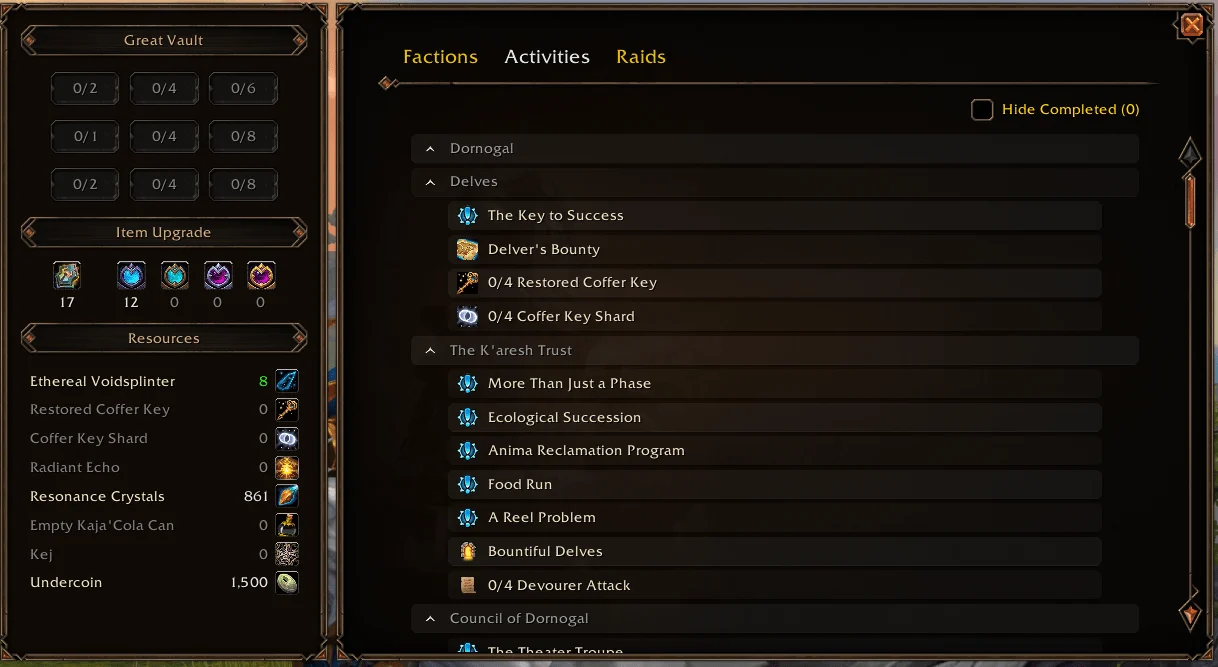
This one is a lifesaver if you’re returning or have no idea what content is available in each expansion. The Expansion Summary window gathers all the important information in one place: key quests and activities, reputation progress, raids and bosses (with loot per difficulty), and the currencies tied to that expansion. Just enable it in the settings, then click the small icon under the calendar in the top‑right corner of the screen to open it. You can also bind it to a custom hotkey. With Enhance QoL installed, this window is movable as well, which makes it easier to integrate into your layout.
Better Bags - Midnight addons
I honestly don’t understand why WoW still uses the old multi‑bag system when most modern MMORPGs offer a single, unified inventory. On one hand, customizing bag sizes is kind of neat; on the other, searching for a specific item can be a nightmare. I appreciate that the developers tried to ease the pain with individual bag filters, but in practice it doesn’t solve the underlying clutter problem.
Better Bags tackles this by giving you a much more organized, combined inventory experience. It groups items intelligently, applies smart filters, and makes finding things significantly faster and less frustrating.
Auctionator - Midnight addons
If you ever use the Auction House for anything, you should seriously consider installing Auctionator. It’s basically the “make the Auction House usable” addon for regular players who just want to buy or sell and get back to playing. It replaces the clunky default interface with a cleaner layout, faster searching, and safer posting so you don’t accidentally list valuable items for next to nothing.

Auctionator also adds pricing context all over the place by showing auction and vendor values directly in item tooltips. It builds this information from full scans and keeps it up‑to‑date, which makes it much easier to judge whether you’re getting a fair price.
Key Auctionator features worth highlighting:
Auction prices in item tooltips, updated via full scans
Simple, intuitive Auction House interface
Safeguards so you don’t post items too low by mistake
Shopping lists with search history and powerful filters
Faster selling flow with auto‑undercut options and quick posting
Undercut scans plus one‑click cancel for your own auctions
Price history to help you distinguish genuine deals from traps
Crafting integration that estimates reagent costs and profits, with quick search for needed mats
Optional modules like Journalator that track sales and purchases over time
The UI changes still feel very close to the Blizzard style, so new players who haven’t used the AH much might not even realize the window is addon‑enhanced.
Cooldown Manager Centered - Midnight addons
Cooldown Manager is widely used, but its default behavior has one annoying limitation: you can’t center the cooldown icons the way many players would like. This addon doesn’t overhaul the system; it just fixes that single irritation without disrupting Blizzard’s design.
Once installed, whenever you reduce the number of columns in the horizontal layout, the icons in the new row are centered rather than shoved to the left or right. The end result looks much cleaner and more intentional, especially if you care about symmetry in your UI.

Discussion(0)